

Linking
The Anchor Tag
- The anchor tag, coded as
<a></a>, serves as the foundation for the Web. - Anchors can be used to:
- Link together documents
- Move to a different location within the same document
- Launch email programs
- Open new browser windows
- Start a telephone call
- Anchors render by default as inline, and are considered inline elements.
- Anchors cannot be nested within each other (this would create multiple destinations, and there is only one destination).
- HTML5 allows anchors to hold block-level elements.
- This does not mean that anchors can go anywhere, because they cannot go between list items, or between table rows (to cite two examples).
- My advice is to think carefully before nesting block-level elements within anchors, because you may end up with unwanted behavior, such as a very large area (or multiple paragraphs of text) being clickable. It is best done as a last resort.
| Attribute | Usage and Effect | Values |
|---|---|---|
| accesskey |
Keyboard shortcut to put focus on the anchor (the enter key or space bar would then activate the link).
Used to improve accessibility, but in practice seldom specified because of the time involved to code these, the difficulty of conveying these to the user, and the chance of overriding shortcuts in other programs (such as screen readers and the browser). Chrome uses 'Alt' plus the indicated character (on the Mac this is 'Control' + 'Alt' + the character). Safari uses 'Control' + 'Alt' + the character. Firefox uses 'Alt' + 'Shift' + the character to avoid clashes with browser shortcuts (which use 'Alt' + the character). Be sure to specify each accesskey letter only once. |
|
| href |
By far the most common use of anchors is to link together documents via these href (hypertext reference) values.
Also used to launch email programs and initiate phone calls. |
|
| rel | This is a forward link.
It specifies the relationship between the current document and the document being linked to, if they are in a sequence and the document being linked to follows the current document. These are not used very frequently. They could assist search engine spiders in indexing content, assist by preloading the next document (in a sequence), or otherwise provide meaning. |
|
| tabindex | Determines the tabbing sequence for links. The default tabbing sequence is the order the links appear in the HTML (from top of file to bottom of file). |
|
| target | Allows you to specify the browser window/tab where the linked document will open. |
|
Additional attributes exist, but are rarely used or are deprecated (the ones detailed are not deprecated).
Absolute Links
- Absolute links give the complete address to the document online.
- You must include the
https://(orhttp://) for these to work properly. - A sample absolute link is:
<a href="https://www.google.com">Visit the Google search engine</a>.
- Or a navigation bar (the domain is
example.com):<ul> <li><a href="https://example.com/products.html">Products</a></li> <li><a href="https://example.com/services.html">Services</a></li> <li><a href="https://example.com/clients.html">Clients</a></li> <li><a href="https://example.com/jobs.html">Jobs</a></li> </ul>
- The main drawbacks of absolute links are their length (the entire path needs to be specified) and their inflexibility. If the domain name changes then all the paths need to be updated.
- Absolute links are used when a website has some of its files, such as images and stylesheets, stored at other domains (this is done to improve page load times / performance). And, of course, when linking to another website in the content of a page.
Relative Links
- Relative links use a partial address, based on the path between the current document and the document to load.
- Compared to absolute links, relative links are shorter and your domain can be changed without breaking links.
- You can also easily move files from one server to another without breaking links, as long as the directories maintain the same relative locations.
- By default, all links are assumed to be relative unless the protocol (
https://orhttp://) is specified. - On Unix and Linux servers all directory and file names are case-sensitive so be careful to match capitalization properly in your code.
- Also be sure to avoid spaces in file and directory names, which are replaced with
%20or+on those servers. - If you just specify the file name, the web server looks in the current directory:
<ul>
  <li><a href="products.html">Products</a></li>
  <li><a href="services.html">Services</a></li>
  <li><a href="clients.html">Clients</a></li>
  <li><a href="jobs.html">Jobs</a></li>
</ul>
All of the files referenced in the previous code would be in the same directory.
- If you are moving up a directory level, specify
../for every level you are moving up. Since a directory can only have one parent directory,../can only have one value.If you wanted to reach a file named example.html two directory levels up, the code would be:
<a href="../../example.html">View the example</a>
- If you are moving down a directory level, you have to specify the exact directory name (remember that capitalization matters on some servers).
If you wanted to reach a file named example2.html that is in the 'coding' subdirectory (which is inside the 'examples' directory), the code would be:
<a href="examples/coding/example2.html">View the second example</a>
- Paths can move up and then down again, as necessary. It all depends on your directory structure.
<a href="../../examples/coding/example3.html">View the second example</a>
Traversing Directory Structures
To provide additional examples of relative linking, the following image shows a directory structure:
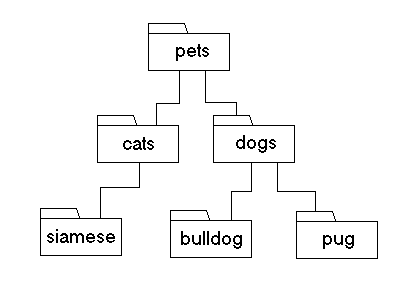
- To link from a file named index.html file in the 'pets' directory to a links.html file in the same directory, the link is:
<a href="links.html">Links</a>
- To link from a file in the 'pets' directory to a file named siamese.html in the 'siamese' directory, the link is:
<a href="cats/siamese/siamese.html">Siamese</a>
- To link from a file in the 'dogs' directory to a file named pug.html in the 'pug' directory, the link is:
<a href="pug/pug.html">Pugs</a>
- To link from a file in the 'siamese' directory to a file named index.html in the 'pets' directory, the link is:
<a href="../../index.html">Pets</a>
- To link from a file in the 'dogs' directory to a file named index.html in the 'pets' directory, the link is:
<a href="../index.html">Pets</a>
- To link from a file in the 'cats' directory to a file named bulldog.html in the 'bulldog' directory, the link is:
<a href="../dogs/bulldog/bulldog.html">Bulldogs</a>
- To link from a file in the 'siamese' directory to a file named pug.html in the 'pug' directory, the link is:
<a href="../../dogs/pug/pug.html">Pugs</a>
- To link from a file in the 'dogs' directory to a file named index.html in the 'cats' directory, the link is:
<a href="../cats/index.html">Cats</a>
Creating Within-Page Links
- Within-page links move the browser window focus to the indicated area of the document.
- Users expect links to take them to a different page, so it is critical that you inform users that a link goes to a section / area of the same page. Otherwise their initial reaction will be confusion and disorientation.
- Specify the
idattribute inside the element that will be the destination in the page content. - The link to the within-page anchor uses the
hrefattribute, with its value set to a#sign followed by theidattribute value. - Note: Within a document, each
idvalue must be unique and can only be used once. You can have as many links as you want to thatid, but theidcan only be applied to one element. - The
idvalues cannot use special characters (they are limited to regular alphanumeric characters). - You can also link directly from one page to the section of a different page.
<a href="example1.html#section1">Go to Section 1 of the Example</a>
Within-Page Anchors Example
See the Pen Within-Page Anchors by Jason Withrow (@jwithrow) on CodePen.
Creating Mailto: Links
- These links open the user's default desktop email program and provide the supplied address in the 'To:' field.
- They use the
hrefattribute and the address is preceded bymailto: - A sample mailto: link would be:
<a href="mailto:[email protected]">Email Jason Withrow</a>
- To improve usability, give the email address in the linked text, so that users can copy / paste it into a web-based email program (or non-default desktop email program):
Email Jason at <a href="mailto:[email protected]">[email protected]</a>
Creating Phone (tel:) Links
- These links open whatever program is associated with the
tel(telephone) protocol. - On smartphones clicking these links should prompt the user about calling the number.
- On desktops/laptops the user might just get an error message, unless they have telephony software like Skype installed that will get sent a command about calling the number.
- They use the
hrefattribute and the number is preceded bytel: - A sample phone link is:
<a href="tel:7341112222">Call Jason at: 734.111.2222</a>
Adding Titles
- In some cases it can be helpful to add the
titleattribute to the links, in order to supply additional details beyond what the linked text indicates:<a href="article.html" title="Published June 2024">Read the article</a>
- Keep in mind that title attributes show their values in a tooltip when the element containing the title is moused over.
- Tablet and smartphone users (and any other user who does not have, or cannot use, a mouse / pointing device) will not trigger display of the tooltip. As a result, hiding important information in a title is not recommended.
Targeting Links
- The one value we will explore is
_blank, which opens the target document in a new browser window/tab every time the link is clicked (so if you click 3 times, you have 3 windows/tabs). This is coded as:<a href="example.html" target="_blank">See the example</a>
- Important Considerations:
- Pretty much any value assigned to the
targetattribute will open in a new browser window/tab, because the browser looks for a window/tab with that name and, not finding it, opens a new browser window/tab and assigns it that name. - Any subsequent use of that same name will load the targeted document in the window/tab already open.
- For example, you will see developers specifying
target="blank"for all their links. Each link re-uses the same browser window/tab (which is named "blank" behind the scenes). - Only
target="_blank"will keep opening new browser windows/tabs each time one of the links is clicked.
- Pretty much any value assigned to the
Identifying Default Link Path and Target
- In the head region of a web page a
<base />tag can be provided. - This tag accepts
hrefandtargetattributes. targetaccepts the same values as detailed in the previous section of this lecture; this becomes the default link targeting in the page.- The
hrefprovided becomes the default reference point for all the relative links in the page. - The value provided is always an absolute path:
<base href="https://learningtocode.info" />
- These defaults can be overriden within the attributes for a particular anchor.