
Website Performance Optimization
The Performance Bootleneck
- In the world of information technology, every system has a bootleneck, a part of the system that slows down performance.
- On desktop and laptop computers the bottleneck is often the hard drive. Anyone switching from a traditional hard disk drive to a solid-state drive will be amazed when Windows boots up in seconds rather than a minute or two.
- For the Web, the bottleneck is generally the Internet. It is usually not the web server, or something else server-side (such as a database). Rather, the bottleneck is the time it takes for packets to route their way from the server to the user. There are certainly slow web servers and overwhelmed databases, but more often the biggest delay is from a huge number of packets routing their way to the user.
- So how do we address this? It boils down to two things:
- Send fewer packets
- Send them in the fastest way possible
- In the world of performance optimization there are "big wins" and "small wins". We will generally focus on the "big wins" - the changes that make a noticeable difference. A particular strategy or approach will be defined by how much of a "win" it is. This is important, because everything takes time, and you're balancing how much effort is required with the amount of benefit. No one wants to spend dozens of hours on something with minimal benefit.
- Although the Internet is generally the bottleneck, sometimes you do have a slow web server, especially if you're on a low-cost host with a shared hosting plan. Your site is one of thousands on the server, and some of your neighbors (the other websites on the server) are not playing nice. Perhaps they are poorly designed and are consuming massive amounts of server resources, or they have been hacked and there is malware running rampant.
Performance-analysis tools can help identify when the server itself is taking 2-3 seconds to respond. If you can't get that resolved through the web hosting tech support, it's time to migrate your site to a better web host or consider paying for a dedicated server where it is just your site on there.
- There are many ways to improve performance. We will focus on the ones you are most likely to encounter, and be able to implement.
GZIP Compression
- GZIP compression is used to compress text files on the server, transmit the compressed files, and then the browser uncompresses them.
- This is a "big win", as HTML, CSS, and JavaScript files can grow quite large and this compression can cut the transmitted file sizes by as much as 70%.
- This can be used for any text file format, so XML files and other XML-based markup languages, like SVG (Scalable Vector Graphics), can also be compressed.
- While there is a slight performance hit on the server as it does the compression, this is seldom a concern and the benefits far outweigh the downsides.
- If you are working on a Unix/Linux server, we add a file named
.htaccessto the directory where our website resides. Directives within .htaccess indicate that GZIP compression is to be used. There are various guides to getting GZIP enabled. - It is important to only compress text file formats, as binary formats (images, PDF files, etc.) are not good candidates and can grow larger if put through this compression.
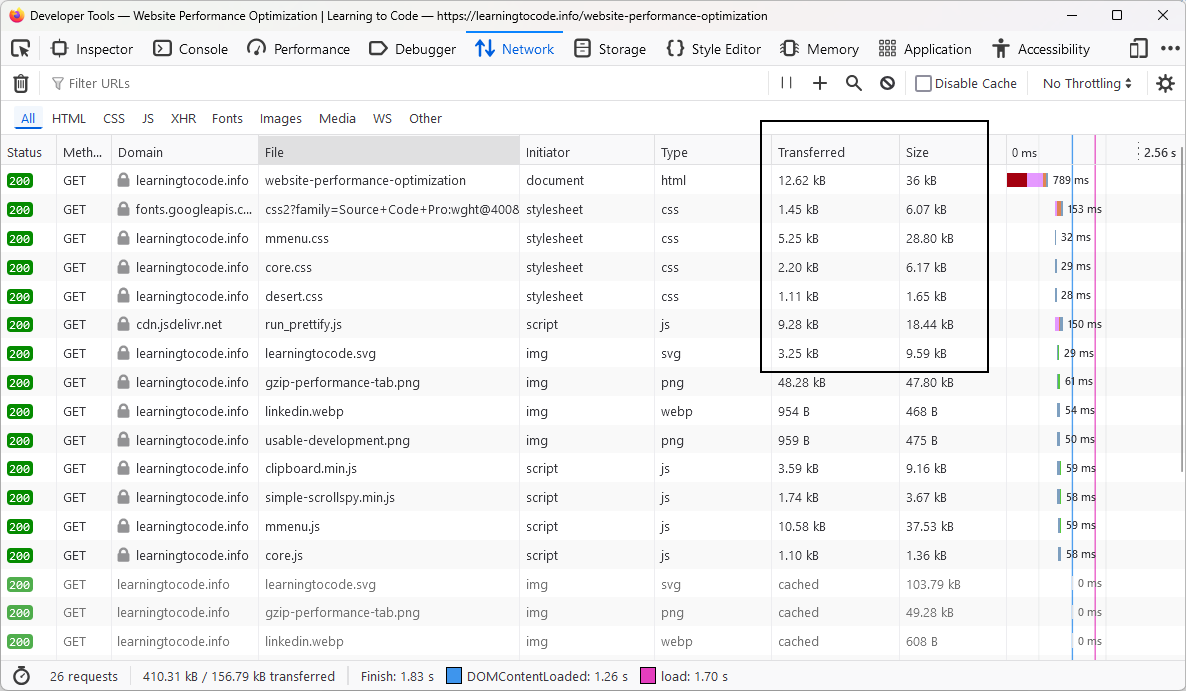
- In order to verify that it is working, use the Developer Tools in your browser (pressing F12 when viewing the web page should trigger them), specifically the Network tab, as shown in this screenshot:
Code Minification and Consolidation
- There are two aspects to this:
- Reducing file size (a "small win")
- Reducing the number of files (possibly a "big win")
- File size reduction usually involves running your code through a tool that minifies the code by eliminating comments, newlines, and extraneous white space (each character typed into your document adds to its size, including those 200 newline characters you put in that are just empty lines).
- There are a variety of tools for HTML, CSS, and JavaScript minification. Just do a web search. For JavaScript I prefer Closure Compiler (this also obfuscates the code, rewriting variable names to make it shorter).
- Your file size reduction will vary, depending on your coding style. The more verbose your comments and use of spacing, the more your code will be reduced. Typically I can reduce my CSS by around 15% - 19% and my JavaScript by around 25%.
- Personally, I don't minify my HTML. It usually saves a few hundred bytes, so it's a tiny fraction of the file size. The risk of having inline or inline-block content (such as nav items) lose spacing and change how they render is simply too great a risk. White space sometimes does matter in our markup.
- It is absolutely critical that you maintain the original, non-minified versions and keep them separate from the rest of the code base. Name them something different than the minified versions. If you delete those versions or accidentally overwrite them with the minified versions, then you have a blob of text that you need to use a tool to "beautify" and make readable again. And if you're using Closure Compiler, all of your variable names are now single letters, so good luck picking that apart.
- Ultimately, minification makes a modest impact on load times. It's good to do, but it won't save a bloated website.
- Consolidating files, so that you go from 5 CSS files down to 1 file, and from 17 JavaScript files down to 1 or 2 files, can make a bigger impact. And if those numbers seem extreme, use the browser's Developer Tools and the Network tab to see how many stylesheets and scripts are being downloaded by the sites you visit.
- How do sites get so many stylesheets and scripts? Web developers, in their desire to work faster and get more done with less effort, are more than happy to pull in someone else's code for that carousel on the home page, those expand/collapse controls on that other page, that nifty navigation bar functionality, that CSS framework (or frameworks) for page layout, jQuery for JavaScript, and the list goes on. Each has its own stylesheet(s) and/or script(s). Before you know it, you're downloading 40-60 files on every web page.
- The solution here is to combine the files, because every HTTP request takes time to complete. Older versions of the HTTP protocol (1.0 and 1.1) put limits on how many requests could be honored at the same time for the same recipient, and browsers have their own constraints as well. Depending on your browser and the server's HTTP version, only 2, 4, 6, or 8 files may be in transit at a time. The arrival of HTTP/2 has helped greatly with this, but not every server is set up to use that updated protocol.
- The challenge, of course, is not to break anything when you combine the files and need to update them down the road. If you combine multiple stylesheets into one file, be careful to combine them in the order you had loaded them (or get ready for possible specificity-related issues, because rules with the same specificity may now be in a different sequence and the ones parsed later will override the ones parsed earlier).
Image Optimization and Consolidation
- There are many considerations in image delivery and image optimization for the Web.
- Generally speaking, those considerations boil down to this list of questions:
- Are you using the best file format?
- Are you sizing the image properly?
- Have you optimized the image?
- Can the image be combined with other images?
- When it comes to image manipulation, if you don't have access to Photoshop, I recommend Paint.net for Windows as a good, free tool. Another alternative that is cross-platform is GIMP.
Choosing the Best Image File Format
- If you have a photograph with lots of colors saved as a 24-bit PNG, you can probably save it as a JPG at 70-80 quality and immediately cut the file size by a significant amount.
- If you have a JPG that is saved at 100 quality, re-save it as 70-80 quality to cut the file size without harming visual quality noticeably.
- There are two major reasons why an image with thousands of colors would remain as a PNG and not get changed to JPG:
- If there is text in the image and you're unhappy with the "ghosting" (fuzziness) that JPG compression puts around the letters
- If you need to have transparency in the image
- PNG is perfect for logos and icons, as well as anything else that has text and needs to keep the text crisp and clean. There is even a version of the PNG format (APNG) that supports animation, which is preferable to an animated GIFs, as they are limited to 256 colors.
- If you're dealing with a GIF, you might consider re-saving it as an 8-bit PNG, as you may be able to reduce the file size further.
- GIF, JPG, and PNG were the only web image options for decades (some browsers did support bitmaps, but those were so enormous due to their lack of compression that they were impractical to use). There are 3 image formats that are vying to take their place:
Format Details Support WebP - Based on the VP8 video format, this is the most viable contender to replace GIF, JPG, and PNG.
- Supports lossy and lossless compression, animation, and alpha transparency.
- Lossless compression should be about 26% smaller than PNG and lossy should be 25-34% smaller than JPG.
No support in Safari until Big Sur macOS (version 11). AVIF - Based on the AV1 video format, this is the most viable contender to replace WebP, GIF, JPG, and PNG.
- It has better compression than WebP and a similar feature set.
See the full support details for AVIF JPEG XL - Another contender to replace WebP, GIF, JPG, and PNG.
Very limited browser support. - So how does one work with all these options?
- If your images are not backgrounds, you use the
<picture>element and pass various sources. The first one that the browser supports it will use. Thetypeattribute specifies the MIME type of the image, and the browser either has support or lacks support.<picture> <source srcset="ltc-logo.avif" type="image/avif" /> <source srcset="ltc-logo.webp" type="image/webp" /> <img src="ltc-logo.png" alt="Learning to Code" width="200" height="70" /> </picture>
- If you're using CSS background images, it is more challenging. Detecting supportive browsers has its pitfalls (your code may be wrong about the browser) and outputting different image paths server-side adds complexity.
- If your images are not backgrounds, you use the
Proper Image Sizing
- The proliferation of digital cameras and smartphones has only increased the prevalence of massively oversized photos that take forever to download. With each generation of smartphones increasing the megapixel capabilities of cameras (which means bigger and bigger photos by default), we often have our work cut out for us here.
- You can immediately tell when an image is far too large by simply watching it render. If it slowly, incrementally appears, line-by-line expanding down to fill the placeholder set aside for the graphic, you know you are dealing with a massive image, because you are watching it download in real-time. It is probably 3000 x 2000, yet it is rendering as a 200 x 150 graphic. And the image is 4 megabytes in size. Smartphones could refuse to cache a file that large (they will always download it with every page load), so you're rapidly depleting whatever data limit your smartphone users have and may be costing them money.
- Another way to tell that an image is huge is if the area where it appears is empty for a long time, and then the image suddenly appears. This is typically the case with CSS background images, in particular the 2000 pixel wide hero images that stretch across the browser window. You don't see the image in that case until it is fully retrieved, and then the renderer will work with it.
- The best practice here is to size images at the dimensions that will be used for displaying them. Resizing enormous images down to reasonable dimensions can be a "big win" as hundreds or thousands of kilobytes are removed.
- While this sounds straightforward, responsive design has made it a tricky question. Images are frequently used as backgrounds, and are styled to stretch to cover the space available (which shifts as the viewport size changes), but we don't want to stretch them unless that is absolutely necessary. So those background images are often larger dimensions than what is ultimately shown.
- Retina displays have complicated image sizing, because they pack in more pixels per inch in their display, which means that images sized perfectly for the physical height and width of the display area now look fuzzy. Apple recommends doubling the dimensions of your image, so that the image you want to display at 300 x 200 should be 600 x 400. Then it won't look fuzzy anymore. Since every pixel in your graphic must have its data stored in these JPG / PNG / GIF / WebP / AVIF / JPEG XL raster formats, you are now increasing your file sizes significantly, and only for a portion of your audience. Check your analytics to see how big a group this is, and decide how much of a file size tradeoff you want to have.
- Unless Retina displays are a big concern for a client, I generally size the image based on the dimensions it is being shown at.
- While displaying an image at a size larger than its actual dimensions is not a great idea (because of image distortion as the brower guesses at pixel colors), CSS background images being set to
background-size: coverallows us to cheat that to some extent.
Image Optimization
- The output from any graphics program is likely to include some extraneous details that add to file size, such as file meta data (data about the image), and may not be using the most optimal settings to minimize the total file size. The graphics program might even be incapable of creating an efficient image.
- Tools such as Kraken.io offer a free option for stripping the meta data and losslessly recompressing your images, resulting in a smaller file that looks the same. While a lossy option will result in even greater file size reduction, just keep in mind that you may not like the end result.
- While you might be concerned that stripping meta data will make it easier for someone to steal your graphics, the reality is that nothing is going to stop them, if they are tech-savvy and determined enough. The thief would also use an optimization tool to strip away the meta data, so there was no trace of it being created by you.
- These tools operate from the compression level you start with, so if you have a JPG with 100 quality you're not going to save much with lossless recompression, because you are not losing any visual quality. Before running the image through an optimizer you should re-save it at 70 quality to cut the starting file size. Or you could experiment with the lossy recompression.
Combining Images
- If you have a layout with a lot of CSS background images, especially small graphics such as icons, you should strongly consider combining them all into one big graphic. We refer to these as a CSS sprite.
- It is much better to download a single sprite containing 20 icons than download the 20 separate icons.
- In a CSS sprite, you are using negative coordinates for the background image to slide around the graphic and just show the portion of it that you want to display in a given location.
- These are best set up as PNG files with a transparent background (or WebP or AVIF depending on browsers being supported), with the images organized into a very long column. Typically, you want at least 75 pixels of empty space between each image, because that is usually enough empty space that you won't see the next graphic futher down on accident. You can have a lot more empty space than that, depending on the situation.
- I do not recommend putting the graphics side-by-side; that is a recipe for disaster. Elements in web pages very often become wider than you expect; they do not as often become taller than expected.
- A sample CSS sprite is available.
Data URIs
- With a Data URI, you can pass a Base64 encoding of the image data via the src attribute or as a CSS background image.
- By inlining the data, you reduce the number of files being downloaded and the data can benefit from GZIP compression, although I wouldn't expect too much of a gain. Thus this is more of a "small win", as you can avoid downloading an extra file or two.
- Here is an example, which is the "hamburger menu" icon used on this website:
<img src="data:image/png;base64,iVBORw0KGgoAAAANSUhEUgAAACgAAAAfCAYAAACVgY94AAAAAXNSR0IArs4c6QAAAARnQU1BAACxjwv8YQUAAAAJcEhZcwAADsMAAA7DAcdvqGQAAAD7SURBVFhH7ZdNDgFBEIWbBUsEwYZbENdgIdZsuIaIQ4i4CgfgFEhm7uDnve4eaZklSbWkvuTrqZ7NVLqTehmjfEnBP0kfzmAZPvlCCPZ0hHu789ThBbKxWBxBU+QCarDjymjocQmveAMXrhSFh3aGE5iEDZImLLlSDF5vAu92pyjKnxOOmQGcQ+mo4xw8wJ3deRrwCsOokXYM31FXhW1XRkOXS3jFa7h0pSg8tBOcwlzU8aoZdTxiCdgPv82oe/CFoij/TjhmhjCmqNvanYfz7wazmInBj6irwJYroyEXdSvIqMumuQT8dhh1adgg4Q+8ZNRlpFCj7gcY8wJo6YpcIIgoygAAAABJRU5ErkJggg==" alt="Menu" />
- This renders as:

- Typically you would only do this for very small images that are less than 4KB in size, because otherwise the resulting encoding will be larger than what you started with.
- Various online tools for Base64 encoding images are available - just do a web search.
PDF Optimization
- PDFs are often overlooked when it comes to reducing file sizes on websites.
- This is likely because the PDF is considered content, rather than being part of the website itself.
- However, compressing PDFs can provide another substantial reduction.
- There are many ways to create PDF documents, and not all of them are efficient. You may be able to reduce a PDF file's size by more than 50% (sometimes much more), with little to no loss of quality.
- I have used the Compress PDF online tool with good results, and there are a number of other options as well.
- If your PDF has images embedded in it, you will want to check the before and after versions for any visible artifacts, such as fuzziness. If any of that occurs, you then need to decide if the quality loss is acceptable.
Expiration Headers
- Another way to reduce the amount of files being downloaded is to have the browser cache them and store them for a period of time. Instructions for how long to retain a file can be passed via the headers that travel with each HTTP packet.
- The challenge here is to still be able to roll out updates to your CSS and JavaScript files and have users be able to see the changes you have made. Since renaming the file requires too much effort, sometimes harmless parameters will be added to make unique URLs (note that the file name is not changing; the parameter is just something tacked on in our reference to the file):
<link rel="stylesheet" href="core.css?v=1" />
- The above approach can still be a lot of work if you are hand-coding all your pages and you need to update every HTML page. Hopefully, you have a server-side approach where you can just update the code in one place (or you can automate the generation of the parameter value when your code changes).
- Chrome, Edge, and Safari are the most aggressive in their file caching, which usually requires flushing their browser cache or pressing Ctrl + F5 in order to get the latest version. Testing in Safari on an iPhone typically involves wiping your browser history each time you want to see a change.
- As with GZIP compression, the expiration headers are set via the
.htaccessfile on Unix/Linux servers; a guide for these expiration headers is available. Depending on the particular file type, you may want to have it expire in a week, two weeks, or perhaps a month. - Content Delivery Networks, covered in the next section, also allow these headers to be set.
Content Delivery Networks
- Content Delivery Networks (CDNs) are services those host your static files (images, CSS, JavaScript) on a worldwide network of servers (the files are copied, or mirrored, to all their servers).
- Cloudflare is one that I use frequently, and for most clients their free plan works just fine. Getting set up with Cloudflare does require you to change your DNS settings, as you need your domain to point to their nameservers, so it takes a bit of setup.
- In my experience, using Cloudflare can deliver another "big win", as pages that took many seconds to render before may load in 1-2 seconds.
- CDNs will use HTTP/2, GZIP compression, set future expires headers, and do various other enhancements to speed up load times. They will automatically determine which of their servers is closest to the user and will send from there, thus minimizing the number of "hops" between server and user.
- Cloudflare also improves security by blocking traffic from known malicious actors, such as bots, and can block denial of service attacks.
- Using a CDN does require some adjustments to your own workflow. Your images, stylesheets, and scripts are now cached by the CDN, so you need to flush that cache if you want changes to be picked up. You may need to put your CDN account into a "development" mode so that you can see the changes you are making to those files (the alternative is flushing the cache with each change made).
- There are many other CDN options available, if Cloudflare is not a viable choice for you.
Domain Lookups, Connections, and Pre-Caching/Rendering
- The
<link />tag has a number of values; some relate to looking up domains you will be accessing and initiating a connection so that downloads are faster. - These range from "small wins" to "big wins" (and in some cases can just be a waste of the user's bandwith).
- The values:
rel="dns-prefetch"- Paired with anhreffor the domain without the protocol (e.g., href="//website.com"); looks up the IP address for that domainrel="preconnect"- Paired with thehreffor the domain (e.g., href="https://website.com"); looks up the IP address and does a TCP handshake / TLS negotiationrel="prefetch"- Paired with anhrefto a specific file URL that you want to download and cache (perhaps an image used on a frequently visited sub page, and loaded in this manner on the home page), which is downloaded with very low priority (very late in the process) because it is not for the current pagerel="preload"- This has similarities to "prefetch", but it gives us more control over when the file is loaded. Read more about preload.rel="prerender"- Paired with anhrefto a specific web page URL that you want to completely download in advance (essentially in a hidden tab); if the user takes that path then the rendering is immediate. Only makes sense if you have high confidence the user is going there (such as the next page in a multi-page article or the next page in the search results). Being wrong means wasted bandwidth, which is a major concern for mobile device users.
Performance Analysis Tools
The following is not an exhaustive list, but it does give you a starting point.
- This renders as: